
Pro Tip
If you’ve been searching for a way to set the default product image on your Elementor product page, your search ends here. I’ll provide you with a free solution on how to set up a product image within an Elementor template, as well as without one. I’ll guide you through various methods, so there’s no need to worry. Let’s get started on simplifying this process for you to Set default image for woocommerce products in product template .

Introduction
When creating an e-commerce website using WooCommerce and Elementor, ensuring that your product pages look visually appealing is crucial. One common challenge is handling default product images when a specific product image hasn’t been set. In this guide, we’ll explore how to set default images for products in Elementor,
How to Set Default Image for Woocommerce Products Step by Step Guide
Here is Full Guide How to Set Default Image for Woocommerce Products.
Step 1: Access WooCommerce Settings
- Log in to your WordPress dashboard.
- Navigate to WooCommerce > Settings.
Step 2: Configure Placeholder Image
- Click on the Products tab.
- Select the Placeholder sub-tab.
- Here, you have two options:
- Upload Your Own Image: You can upload a custom default image.
- Choose from Media Library: Select an existing image from your media library.
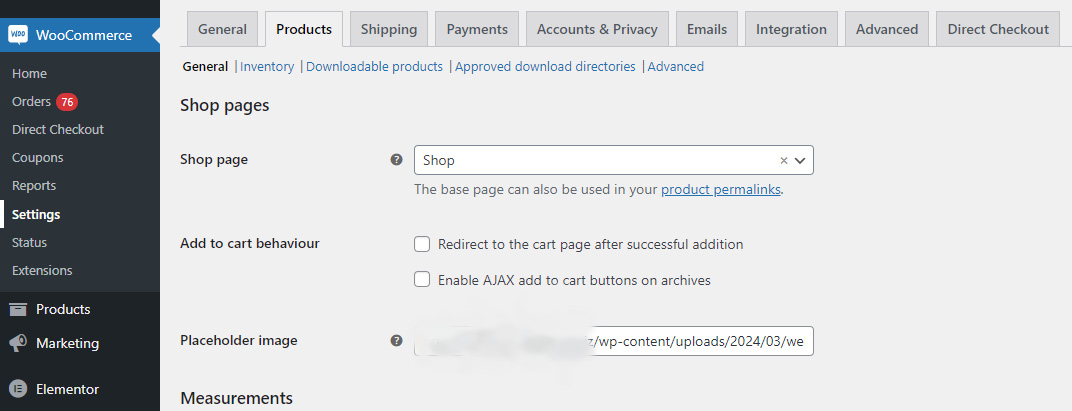
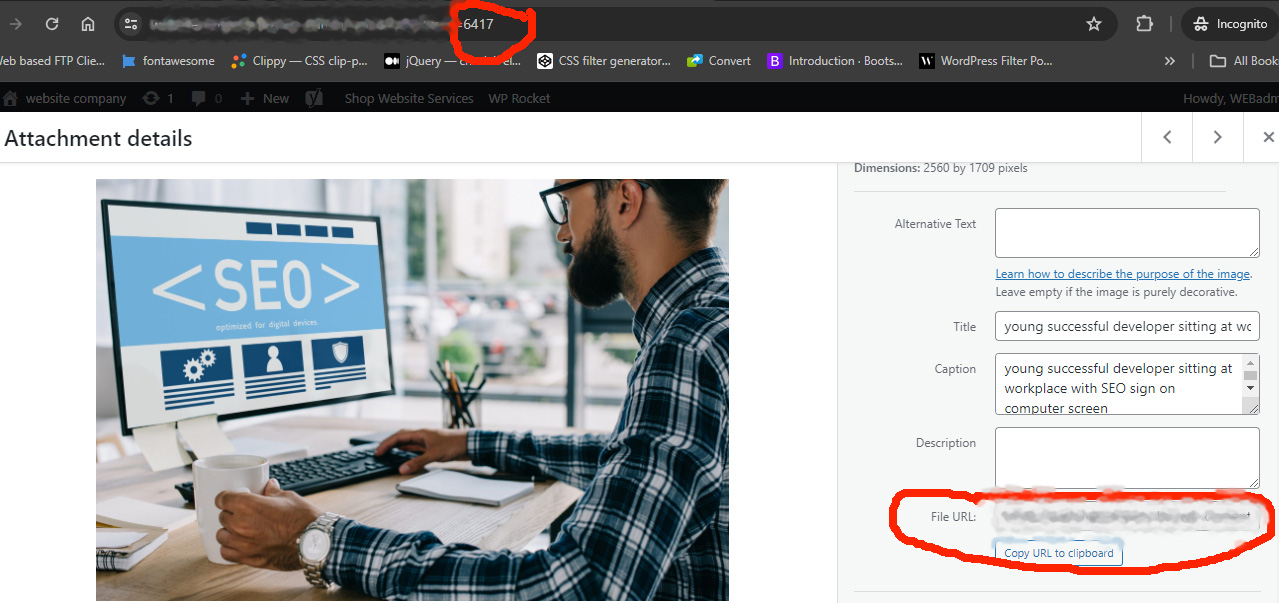
Once you update the image ID or image URL, you will see all the products without an image updated with your default image!
Step 3: Save Settings
Click the Save Changes button to apply your new default image settings.
How to Set Default Image for Woocommerce Products in Elementor Product Template: Step-by-Step
Step 1: Access Elementor Theme Builder
- Navigate to Theme Builder > Single Product.
Step 2: Configure Placeholder Image
- Click on the Edit.
- Add an HTML widget.
- Add the below script.
- Add class “prdimg” in the column where you need the default product image.
- Please change the default image src like you need in this code.
<script>
        document.addEventListener('DOMContentLoaded', function() {
            // Find the container element for the product image
            var productImageContainer = document.querySelector('.prdimg');

            // Check if the container exists and if it doesn't already have an image
            if (productImageContainer && !productImageContainer.querySelector('img')) {
                // Create a new image element
                var defaultImage = document.createElement('img');
                // Set the source of the default image
                defaultImage.src = 'https://doamingname.com/wp-content/uploads/2026/04/wc-logo.png';
                // Append the default image to the container
                productImageContainer.appendChild(defaultImage);
            }
        });
     </script>
Step 3: Save Settings
Click the Save Changes button to apply your new default image settings.
Add the above script, and you can set a product placeholder image if no product image is set on the featured image in the single product Elementor template.
other way to use set default image for products if not product image set
Customize in Code (Advanced)
- If you have many products without featured images, consider changing the default image in the code.
- Open the
functions.phpfile in your child theme. - Add the following code:
    function wc_change_default_image($src) {
        $src = '/path/to/new/default/image.jpg';
        return $src;
    }
    add_filter('woocommerce_placeholder_img_src', 'wc_change_default_image');
If you want to set a default image for products in case they don’t have one already assigned, you can use this function. Just make sure to add this code to your child theme. If you don’t, it might stop working when you update your current theme.
add_action( 'init', 'custom_fix_thumbnail' );

function custom_fix_thumbnail() {
    add_filter('woocommerce_placeholder_img_src', 'custom_woocommerce_placeholder_img_src');

    function custom_woocommerce_placeholder_img_src( $src ) {
        $upload_dir = wp_upload_dir();
        $uploads = untrailingslashit( $upload_dir['baseurl'] );
        $src = $uploads . '/2012/07/thumb1.jpg';

        return $src;
    }
}
Conclusion
Programmatically accessing product images in WooCommerce offers developers endless customization possibilities. This code snippet provides a step-by-step guide to retrieving and utilizing product images.
Gaining knowledge of the art of putting a default product image in Elementor can significantly beautify the visible consistency and personal experience of your e-commerce internet site. By making sure that each product listing has a visually appealing placeholder, you create a cohesive browsing environment that instills self-assurance for your buyers and drives conversions. With Elementor’s intuitive interface and strong features, you could streamline internet site management and create a compelling online buying vacation spot that leaves an enduring influence on your target audience.
You can check here how to create a video carousel slider elementor free.
FAQ
Can I Set Different Default Images for Different Product Categories?
- Unfortunately, WooCommerce doesn’t natively support category-specific default images. However, you can achieve this using custom code or third-party plugins.
Can I Add a Default Image Using Elementor’s Media Control?
- Yes! You can programmatically set a default image using Elementor’s media control. For example
plugin_dir_url(__DIR__) . 'assets/img/placeholder.png'
In a Rush? Dive into Our Bite-Sized Web Stories!
If time is tight, explore our web stories—they’ll help you achieve your goals faster.