
Pro Tip
Pro tip: If you don't have Elementor Pro, don't worry; you can use an HTML widget to put your custom css. After researching, trying, and testing my team, I did find some simple methods by which you will be able to close the first accordion. If you don't know coding, don't worry; here is a full guide with code, so there is no need for coding skills.
Hello, this blog post is for you if you don’t know how to close your first accordion. If you try to learn as a beginner and need to solve your issue to close the Elementor first accordion, please try using the below method that is working 100% for me.
Hope you like this, and if you experience any issues in Elementor or WordPress, our team is ready to help you contact us.

Table of Contents
How to keep Elementor First Accordion Closed by Default ?
Using this script and CSS keeps the Elementor first accordion closed by default. Here is an easy guide with an image, and also know how to do it for free without buying Elementor Pro.
- Take an Elementor HTML widget.
- Paste this jQuery and CSS code to close the Elementor Accordion in the HTML Widget.
<style class=”accordion-closed-on-load”>
body:not(.elementor-editor-active) .elementor-widget-accordion .elementor-tab-content {
display: none!important;
}
</style>
window.addEventListener('load', function() {
setTimeout(function(){
document.querySelector('.accordion-closed-on-load').remove();
let accordionsElems = document.querySelectorAll('.elementor-widget-accordion')
accordionsElems.forEach(e => {
let activeTitle = e.querySelector('.elementor-tab-title.elementor-active');
let activeContent = e.querySelector('.elementor-tab-content.elementor-active')
jQuery(activeContent).hide();
activeTitle.classList.remove('elementor-active');
activeContent.classList.remove('elementor-active');
activeContent.setAttribute('hidden','hidden');
activeTitle.setAttribute('aria-expanded',false);
activeTitle.setAttribute('aria-selected',false);
activeTitle.setAttribute('tabindex',-1);
});
},100);
});
Your HTML widget will look like the below screenshot.
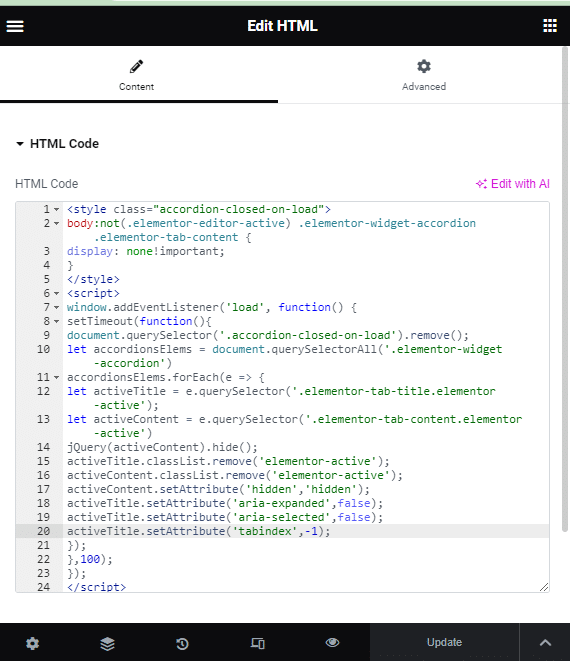
After adding this, your result will be like this.
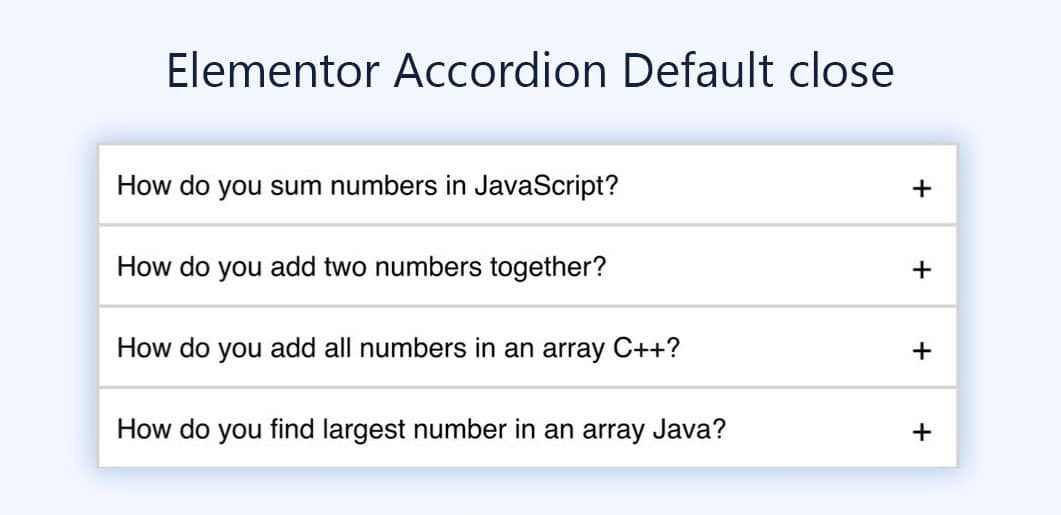
You can add the above script so you will get your default open Elementor Accordion closed.
An HTML Widget that Helps You Keep Elementor Accordion Closed by Default (Using JavaScript Code)
To close the first accordion item by default in Elementor, you can follow these steps:
Step 1: Copy the below-provided Javascript code…
<script>
jQuery(document).ready(function($) {
var delay = 100; setTimeout(function() {
jQuery('.elementor-tab-title').removeClass('elementor-active');
 jQuery('.elementor-tab-content').css('display', 'none'); }, delay);
});
</script>
Step 2: Just above your accordion widget, place an “HTML Widget” from the elements panel & paste the above-provided Javascript code inside the HTML Code.
Step 3: Once done, publish or update the page, see it live & shout—Yes, I got the shit done! Just kidding, that’s all you need to set the Elementor accordion start as closed.
Custom Code in Elementor Pro:
<script>
    $('.elementor-tab-title').removeClass('elementor-active');
    $('.elementor-tab-content').css('display', 'none');
</script>
If you have multiple accordions on your website and want to make them all closed by default, follow these steps:
- Go to Elementor -> Custom Code in your WordPress dashboard.
- Click the Add new button to create a new custom code snippet.
- Give your custom code a name and paste the JavaScript code provided above.
- Choose the location (header, footer, or body) where your code should work.
- Click the Publish button to apply the code.
- Reload one of the pages on your website that contains an accordion to check the result.
Elementor Pro Advanced Tab
Set the CSS class “closeAccordion” for the accordion widgets you want to close by default.
<style>
    .closeAccordion .elementor-tab-content {
        display: none;
    }
</style>
How To Apply
- Click on the Advanced tab of the desired accordion widget.
- Enter “closeAccordion” in the CSS Classes box.
- Create a custom code in Elementor Pro and paste the provided CSS code.
- Save the changes.
ElementsKit
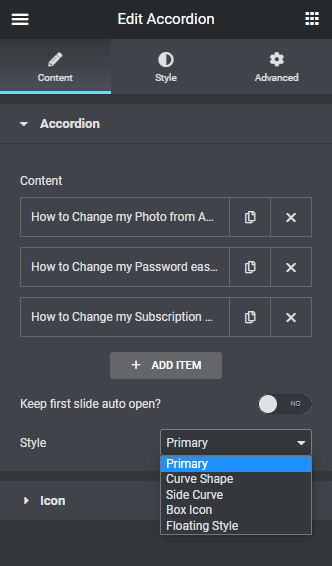
This addon offers a one-click setting to keep the first slide as closed or opened and also settings on individual items of the accordion to keep them active/inactive. What I liked about ElementsKit is it offers 25+ ready-to-import Elementor accordion templates for a faster workflow.
Essential Addons
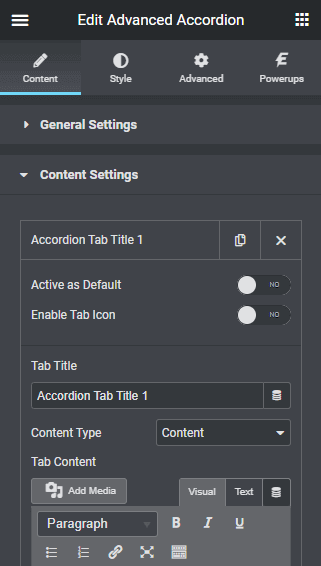
Similar to ElementsKit, it offers settings with the name “Active as Default” on individual accordion items to set them as closed or open. By default, all the accordions are inactive.
Elementor Hooks
Utilize Elementor hooks to inject custom JavaScript code that closes the accordion sections by default. This method allows for precise control over when and how the code is executed within Elementor’s rendering process.
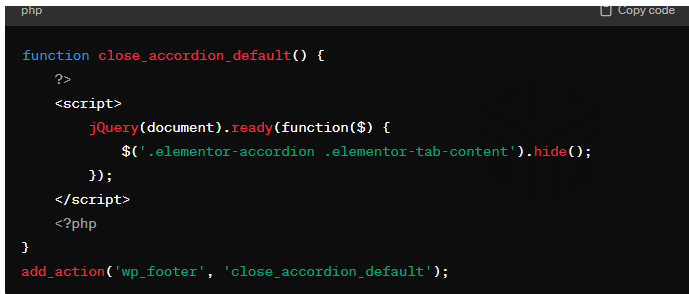
function close_accordion_default() {
?>
<script>
jQuery(document).ready(function($) {
$(‘.elementor-accordion .elementor-tab-content’).hide();
});
</script>
<?php
}
add_action(‘wp_footer’, ‘close_accordion_default’);
How To Apply
- Click on the Theme File Editor inner Appearance item.

- Added above code in function.php file than update your code.
other technique you may also like
- Widget Settings: Within the Elementor editor, access the accordion widget settings and specify the default state as closed. This ensures all accordion sections remain collapsed upon page load.
- Custom CSS Styling: Utilize custom CSS to override the default behavior of Elementor accordions. Target the accordion elements and set their initial display property to “none” to keep them closed until interacted with.
- JavaScript Initialization: Implement JavaScript code to control the behavior of Elementor accordions. Use jQuery to programmatically set the accordion sections to a closed state upon page load.
- Elementor Hooks: Utilize Elementor hooks to inject custom JavaScript code that closes the accordion sections by default. This method offers precise control over when and how the code is executed within Elementor’s rendering process.
- Elementor Template Overrides: Create a custom Elementor template for the accordion widget and apply custom JavaScript to close the accordion sections by default. This provides a structured approach for managing customizations within Elementor’s framework.
- Using Elementor Actions: Leverage Elementor actions to insert custom JavaScript code into specific areas of the page, such as the footer, to close accordion sections by default. This offers flexibility in where and how the JavaScript code is applied within Elementor’s structure.
- Consider User Experience: While keeping accordions closed by default can streamline the page layout, consider user experience implications. Ensure that users understand how to interact with the accordions to reveal additional content.
Conclusion
Hope you like and enjoy the code. If you are still having issues with anything, please let me know; I just opened the comment box for you. Also want to share one more secret: if any jQuery code is not working, use “jQuery” in place of “$.” Try this and let me know if it works for you.
FAQ
Can I integrate the accordion feature with other Elementor elements?
Yes, one of the key strengths of Elementor Accordion is its compatibility with other Elementor elements. You can effortlessly integrate accordion widgets with various elements like buttons, images, and text to create dynamic and engaging web pages. This flexibility opens up endless possibilities for creative and interactive design.
Are there any best practices for using Elementor Accordion effectively?
To make the most of Elementor Accordion, consider the following best practices:
- Use concise and compelling headings for accordion sections.
- Test the responsiveness on different devices during the design phase.
- Experiment with different styling options to align with your brand identity.
Can I adjust settings within the Elementor editor to achieve this?
Yes, within the Elementor editor, you can access the settings of the accordion widget and specify the default state as closed. This setting ensures that all accordion sections start in a collapsed state.
Is it possible to use custom CSS to keep accordion sections closed?
Absolutely. By applying custom CSS, you can override the default behavior of Elementor accordions. Target the accordion elements and set their initial display property to “none” to keep them closed until interacted with.
How do I keep the Accordion widget closed by default in Elementor?
By default, the first item of the Accordion widget in Elementor is expanded, while all other items remain collapsed. If you want to keep all items closed initially, you can achieve this using JavaScript or Elementor add-ons like JetTabs or Essential Addons
Is there an image-based Accordion widget in Elementor?
Unfortunately, the default Accordion widget in Elementor doesn’t allow adding image-based content However, you can install Elementor add-ons like JetTabs or Essential Addons to create image accordions
Are there any Free Elementor Accordion Widgets available?
Yes, there are several free elementor accordion widgets available. To name a few – ElementsKit, ElementPack, Powerpack, etc add-ons provide free elementor accordion widgets along with templates that you can use on your website.
In a Rush? Dive into Our Bite-Sized Web Stories!
If time is tight, explore our web stories—they’ll help you achieve your goals faster.