
Pro Tip
You can effortlessly create a self-hosted video carousel using the Elementor widget called ‘Media Carousel.’ It’s designed to be user-friendly, so even if you’re not familiar with coding, you’ll find it straightforward to use. This widget offers a unique approach to building sliders, making it a breeze for anyone to add engaging, dynamic content to their website.
Elementor offers various slider options, including the ability to use videos from platforms like YouTube and Vimeo. However, if you don’t have your videos on these platforms, creating a slider might seem challenging. That’s why I’ve conducted thorough research and crafted a detailed guide specifically for those who wish to create a self-hosted video carousel slider on their website. This guide is unique and provides step-by-step instructions that you won’t find anywhere else. Whether you’re a seasoned web designer or just starting out, this guide will help you seamlessly integrate a self hosted video carousel slider into your Elementor pages.
Introduction
How many ways to create video slider in elementor?
In Elementor, there are several ways to create a video slider, each offering different features and customization options. Here are some methods you can explore:
1. Elementor’s Media Carousel Widget: This is a built-in option if you have the Pro version of Elementor. It allows you to create a slider with images, videos, or both, and includes features like Lightbox for full-screen viewing.
2. Unlimited Elements Image and Video Content Slider: An addon that provides a simple slider widget supporting both images and videos. It gives you full control over the customization of your slider, including adding content and call-to-action buttons.
3. Unlimited Elements Video Gallery: Another addon that allows you to create a video gallery carousel, which can be a creative way to display your videos.
4. POWR Video Slider: A free app that lets you create a video slider by adding a widget in Elementor. You can customize it and apply changes directly in the Elementor editor.
These options cater to different needs, whether you’re looking for a simple solution or a more advanced, customizable slider. Remember, some of these options may require the Pro version of Elementor or additional addons.
Create Self Hosted Video Carousel Slider Elementor Pro Free Guide with Screenshot
To begin creating your video carousel slider, you’ll need to have Elementor Pro installed and activated on your WordPress website. If you haven’t already done so, you can download Elementor Pro.
Once Elementor Pro is installed, you can create aself-hosted video carousel slider by following these steps:
Step 1: Create a New Page or Edit an Existing One
Navigate to the WordPress dashboard and either create a new page or edit an existing one where you’d like to add the video carousel slider. Click on “Edit with Elementor” to launch the Elementor editor.
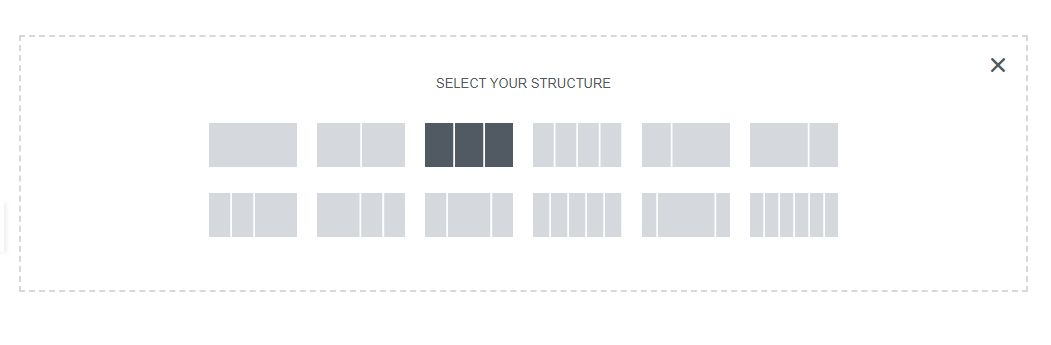
Step 2: Add a Section
Click on the “+” icon to add a new section to your page. Choose the desired structure for your video carousel slider. You can opt for a single column or multiple-column layout, depending on your design preferences.
Step 3: Insert the Media Carousel Widget
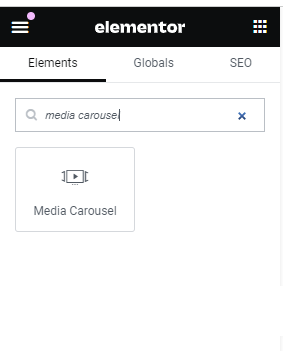
Within the section you created, click on the “+” icon again to add a new widget. Search for the “Media Carousel” widget and drag it into the section.
Step 4: Customize the Video Carousel
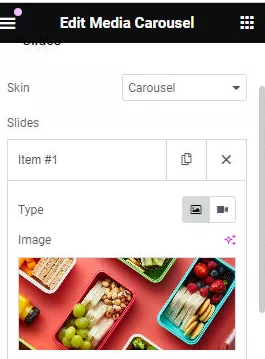
Once you’ve added the Media Carousel widget, you can start customizing it according to your preferences. Here are some of the customization options you can explore:
Add Item: Click on the “Add Item” button to choose an image from your media library
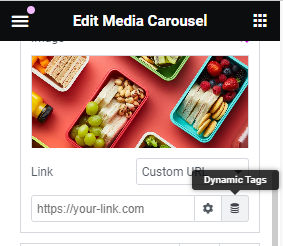
Add Link: Click on the “Link Button” to choose Custom URL, and then click on the dynamic tag and choose Lightbox.
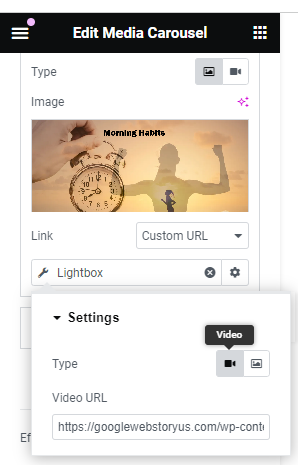
Add a video link: long press on the “Lightbox” and edit the setting, choose video, and paste the video URL from your media library.
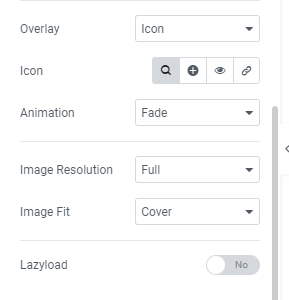
Add a background overlay: Click on the additional option, then click overlay. You choose text or icon (you choose only 4 icons). You need to add other icons; we are providing some CSS below:
<style>
    /* Style for the add custom icon in background overlay */
        .video-slider .elementor-swiper-button svg{
            display: none;
        }
        .swiper-slide:not(:hover) .e-overlay-animation-fade{
            opacity: 1 !important;
        }
        .video-slider .elementor-carousel-image-overlay:after{
            content: '';
            background: url(https://dailywebstory.com/wp-content/uploads/2024/04/video-play.png) no-repeat center;
            width: 100px;
            height: 100px;
            position: absolute;
        }
        .video-slider .elementor-carousel-image-overlay{
            background: transparent !important;
        }
 </style>
added above css and you can add custom icon in your video carousel slider background overlay.

You can also use other way to create video carousel slider using media carousel
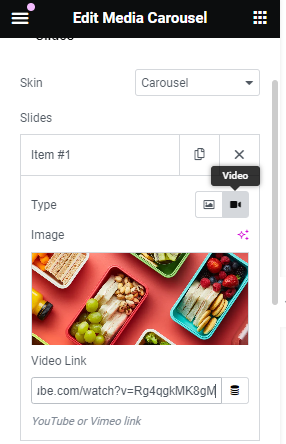
You can click video and then add youtube link or vimeo link and create video carousel slider.
Conclusion
Congratulations! You’ve successfully created a video carousel slider in Elementor for free. By following this comprehensive guide, you can leverage the power of video to engage your audience and elevate the visual appeal of your website. Experiment with different customization options to create a video carousel that perfectly aligns with your brand and objectives. Happy carousel building!
Check for Elementor Vertical Thumbnail Slider Using Image Gallery.
FAQ
Can I Add Videos from Different Platforms?
- Yes! Elementor’s Video Carousel supports various hosting platforms, including YouTube, Vimeo, SoundCloud, and more.
Can I customize the appearance of the video carousel to match my website's branding?
- Absolutely! Elementor provides extensive styling options, allowing you to customize colors, fonts, and other visual elements to align with your brand identity seamlessly.
Can I add custom thumbnails to my videos in the Elementor video carousel?
- Yes, Elementor allows you to upload custom thumbnails for each video, enhancing visual consistency and branding.
Can I add a background overlay to my video carousel for enhanced visual appeal?
- Yes, Elementor offers background overlay options, allowing you to add colors, gradients, or images behind your video carousel for a polished look.
Is it possible to customize the transition effects between video slides?
- Absolutely! Elementor provides various transition effects such as slide, fade, and zoom, enabling you to create visually dynamic transitions between videos.
In a Rush? Dive into Our Bite-Sized Web Stories!
If time is tight, explore our web stories—they’ll help you achieve your goals faster.